
A little companion. A bigger world. Meet Pact
pact.Get Pact
A softly textured lavender and apricot horizon over an open sea

CLAUDE FOR THE CONVERSATION. FO FOR THE NEXT STEP.

Good ideas deservea next step.

Your AI companion in Chrome. Talk with Claude,
understand the page, and ask Fo to take action.

Get Pact for Chrome Try it in your browser
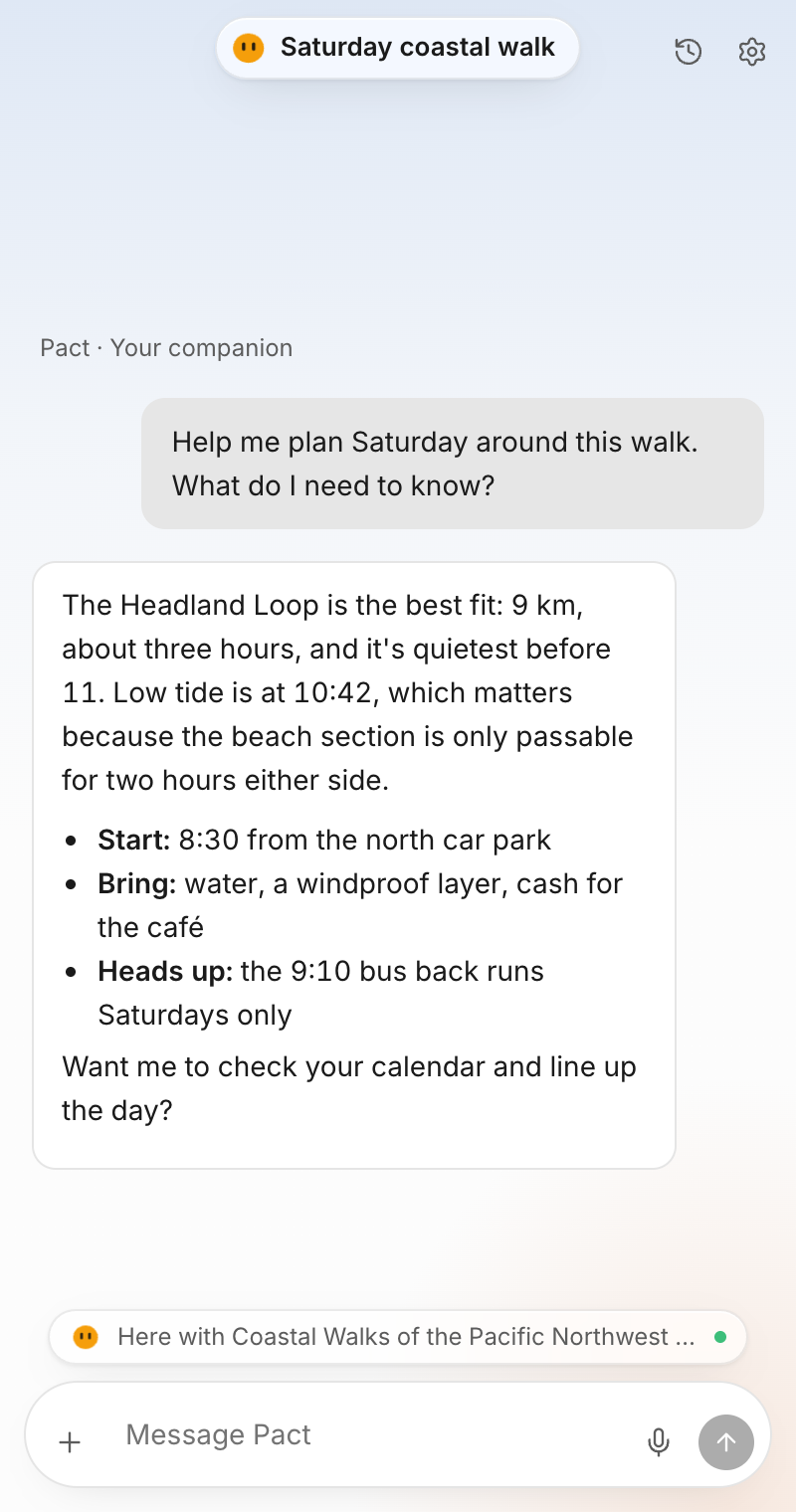
Pact reading a coastal walking guide and planning a Saturday around it
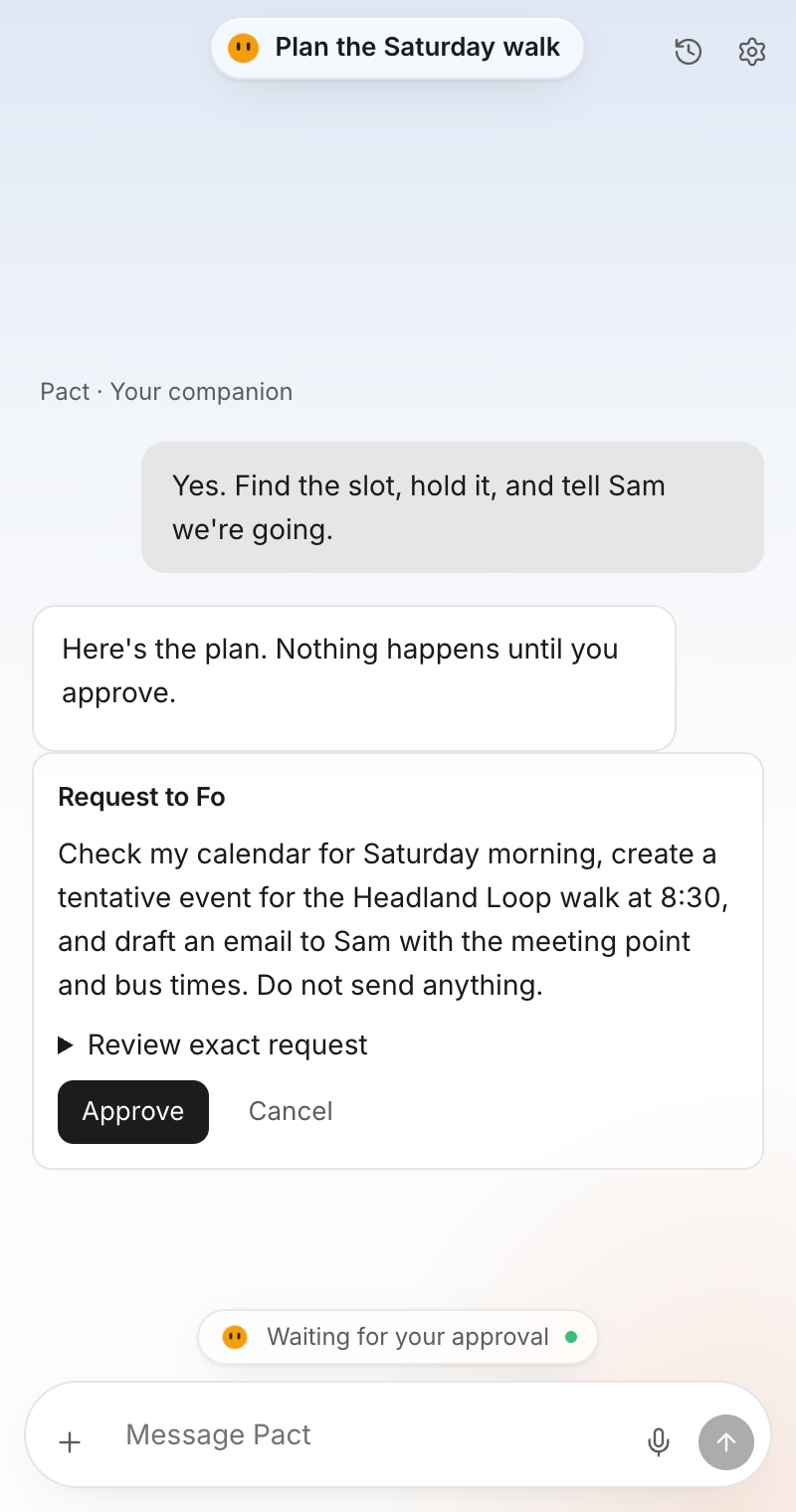
Pact proposing a calendar hold and an email draft to Fo, waiting for approval
THE REAL PANEL · STAGED EXAMPLE   /   THINK WITH CLAUDE   /   ACT THROUGH FO   /   STAY IN CONTROL

A conversation is
only the beginning.

An article becomes an idea. A place becomes a plan. A conversation becomes the first step toward doing it.

Pact brings Claude into your Chrome side panel, with context from the page you choose. Work through what matters, then ask Fo to carry out a supported task using the tools you’ve connected.

From a tab to a possibility
Beside the page Conversation with Claude Action through Fo Always your call

From “what if”
to what’s next.

One companion.
Room for all your intentions.

SPACE TO THINK

A good conversation.
A clearer next move.

Ask a question, untangle an idea, or work through a plan. Start naturally. You don’t need a perfect prompt.

Conversation powered by ClaudeA companion right in Chrome
A new idea↺   ⚙
Here when you are
PactFo
  • Gmail
  • Calendar
  • Drive
  • Slack
  • Figma
  • Notion
  • GitHub
  • Linear
  • Asana
  • HubSpot
  • Stripe
  • Zoom

…and any MCP server you connect

03 / A WORLD BEYOND THE CHAT

Your tools.
A wider world.

Fo is Pact’s bridge to supported real-world tasks. Connect your Fo account in Pact, then use the services you’ve authorized in Fo.

Google Workspace, phone and email tasks, and custom MCP connections: Fo opens up much more than a few app integrations. Services already authorized in Fo use that connection path; add others inside Fo as needed. Supported tasks and permissions depend on your account.

How connections work
A COMPANION, WITH YOU IN CONTROL

A little momentum.
Entirely your call.

01

You choose the direction.

Keep it conversational. Ask for help with a thought, a plan, or the page you’re looking at.

02

Know what happens next.

See a proposed task before approving it. A suggestion is a starting point, not a completed action.

03

Follow the real result.

Pact shows the status returned by Fo. Check the outcome before treating an external task as complete.

Make room for
what comes next.

A small home in your browser.
A little momentum for your day.

RELEASE BEING PREPARED

The judge download is being verified. The installation guide is ready below.

Or try it in your browser first See installation steps

Your first few minutes with Pact.

  1. 1

    Download. Unzip. Keep the folder.

    Download the ZIP and extract it. You’ll get one folder with manifest.json inside it. Keep it somewhere permanent.

  2. 2

    Give Pact a home in Chrome.

    Paste chrome://extensions into Chrome’s address bar. Turn on Developer mode, choose Load unpacked, and select that extracted folder, the one that directly contains manifest.json.

  3. 3

    Open a page. Say hello.

    Use Chrome’s Extensions menu to pin Pact, then click its icon. Start with a question about a supported page.

Chrome’s official installation guide ↗

A few things to know.

How do I connect my Fo account?

In the extension, open Settings → Connections and choose Connect beside Fo. Complete the sign-in flow in Fo. Services you want to use may need to be connected in Fo first. The website does not sign in or connect accounts for you.

Can I use every service shown here?

The connection map shows examples of services available through Fo, not services already active in your account. Actual tasks depend on Fo’s available tools, your connections, permissions, and service limits.

Is this a live demo?

The walkthrough on this website is illustrative. It doesn’t send messages, connect accounts, or execute tasks. The extension download appears when its release package has been verified.

Will Pact understand every page or video?

Pact reads a page only when you ask, and Chrome shows an “all websites” notice at install because Pact can be used on any site. Access depends on the website. Video captions are not always available. Check the source context in Pact; when information is missing, provide the relevant text or clarify your request.

Is Pact in the Chrome Web Store?

This early build uses a downloaded, unpacked extension. Chrome requires the Developer mode installation steps above. A ZIP is not installed by moving it into your Applications folder.

SEE SOMETHING. WANT SOMETHING. MAKE A PACT.

You’ve had the idea.
Let’s take the next step.

Make a little room for Pact